

After you’ve decided on a secure password policy that fits your company’s security needs, it’s time to actually implement your new secure password policy on your network.
On a Windows Active Directory domain, we’ll do this by editing the Default Domain Policy Group Policy Object (GPO). This will enforce the new secure password standards for all user accounts in your domain.
A technical note: It’s important to make these changes in the Default Domain Policy — and only in that policy — if you want them to actually be effective. This is because the password policy is a computer configuration policy. It actually changes settings of the Active Directory databases on the domain controllers to enforce the password policy. So creating a password policy and linking it to an OU that holds users won’t actually do anything for you. Configure it in the Default Domain Policy.
To edit group policy, you’ll need MS Remote Server Administration Tools (RSAT) installed. These are installed by default on server OSes (they just need to be activated in Server Manager), but on client OSes (Windows 7, 8.1, and 10) you’ll need to download and install them from Microsoft.
You’ll also need the appropriate permissions. For small organizations, you’ll probably need to use the Domain Administrator credentials. Don’t add your own primary account to the Domain Admins group — it’s much more secure to have a separate account with these elevated rights.
<’h2′ class='av-special-heading-tag ' itemprop="headline" >’1.
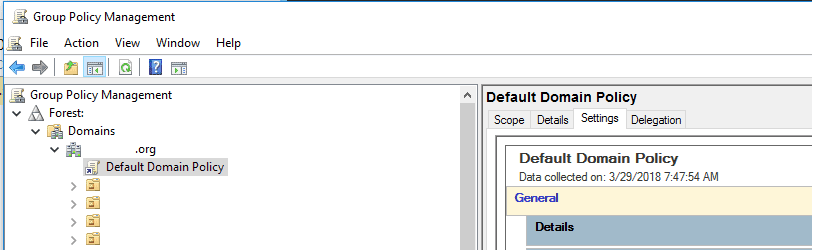
2. Expand your forest, then your domain
3. Locate the Default Domain Policy GPO. Right-click it and select “Edit…”
<’h2′ class='av-special-heading-tag ' itemprop="headline" >’4.
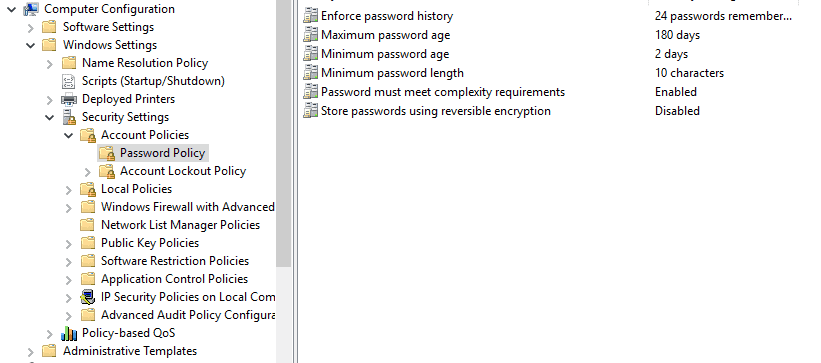
5. Click Password Policy
6. Edit the following settings by double-clicking to open them:
Enforce Password History: This is the number of passwords that Windows will “remember” and prevent users from reusing. The default of 24 remembered passwords should be fine in most cases.
Maximum Password Age: This is your password expiration time, in days. If you chose 6 months, for example, set this to 180 days.
Minimum Password Length: This is the minimum number of characters that passwords must use. As we discussed in the previous article, 8 is the bare minimum — 10 or 12 is much more secure.
Passwords Must Meet Complexity Requirements: This setting enforces two different password complexity rules: A password must contain three out of the four character types, and it may not use a part of the user’s username or full name of more than two characters. (These rules are built in to Windows and are not editable — at least not easily).
7. Next, click Account Lockout Policy, and edit the following settings:
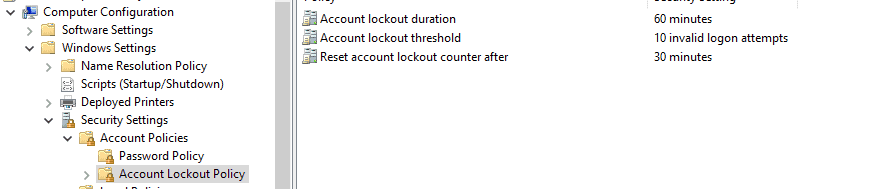
Account Lockout Duration: How long, in minutes, to lock out an account for trying too many bad passwords. Set it to the value that you chose for your password policy.
Account Lockout Threshold: This setting determines how many password attempts a user is allowed before his account is locked out. Lower numbers are more secure, but can result in increased user frustration.
Reset Lockout Count After: This setting, in minutes, is how long after the last bad password attempt that a user’s bad password attempts are “forgiven”. This needs to be less than or equal to the Account Lockout Duration.
And that’s it! Your new password policy will automatically be applied next time your users change their passwords, so be sure to let them know about the new policies — and where to get help in case they lock their account out.
If you need help securing your network from cyber attackers, contact E-N Computers today for a free consultation.
Further Reading:
Explanation of Security Policy options from Microsoft’s Windows IT Pro Center